All the other steps will remain the same as described in the Master Server Type instructions. Only the Server Type Page will be affected by these changes.
-
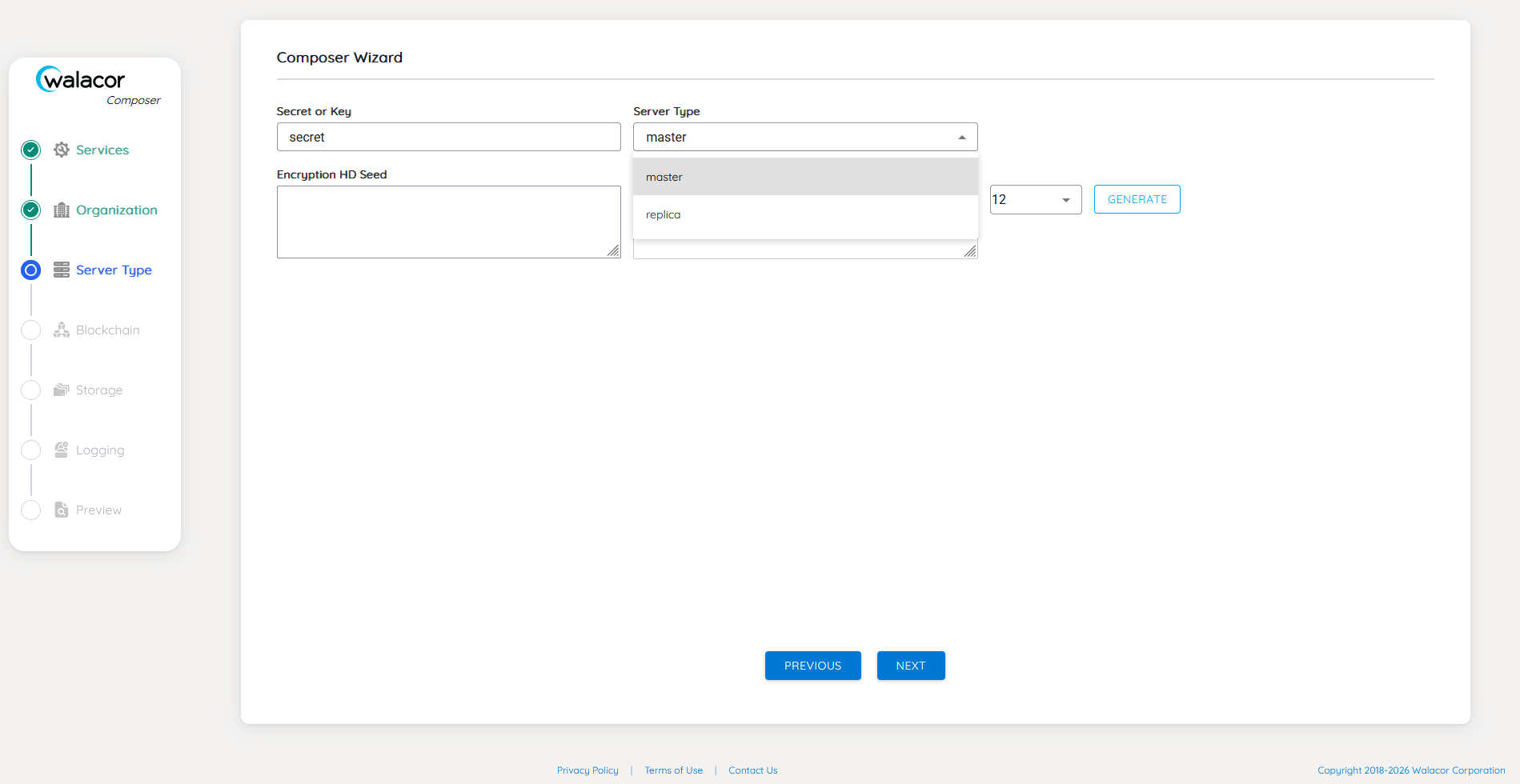
When Selecting “
replica" from the “Server Type" drop-down menu:
-
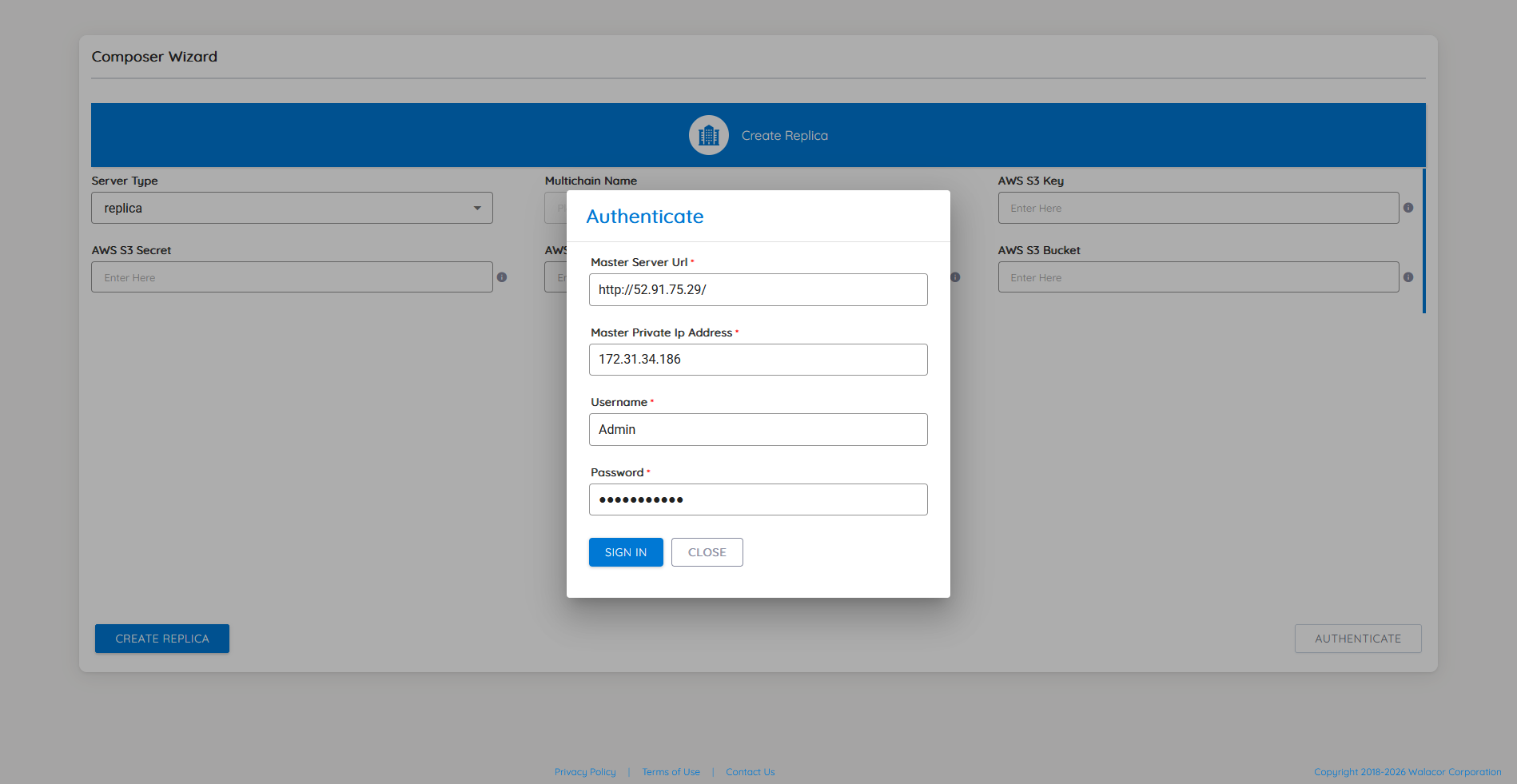
Next is setting up authentication between the “
master" and “replica" nodes. Enter the required credentials for each field and click the “SIGN IN" button.
-
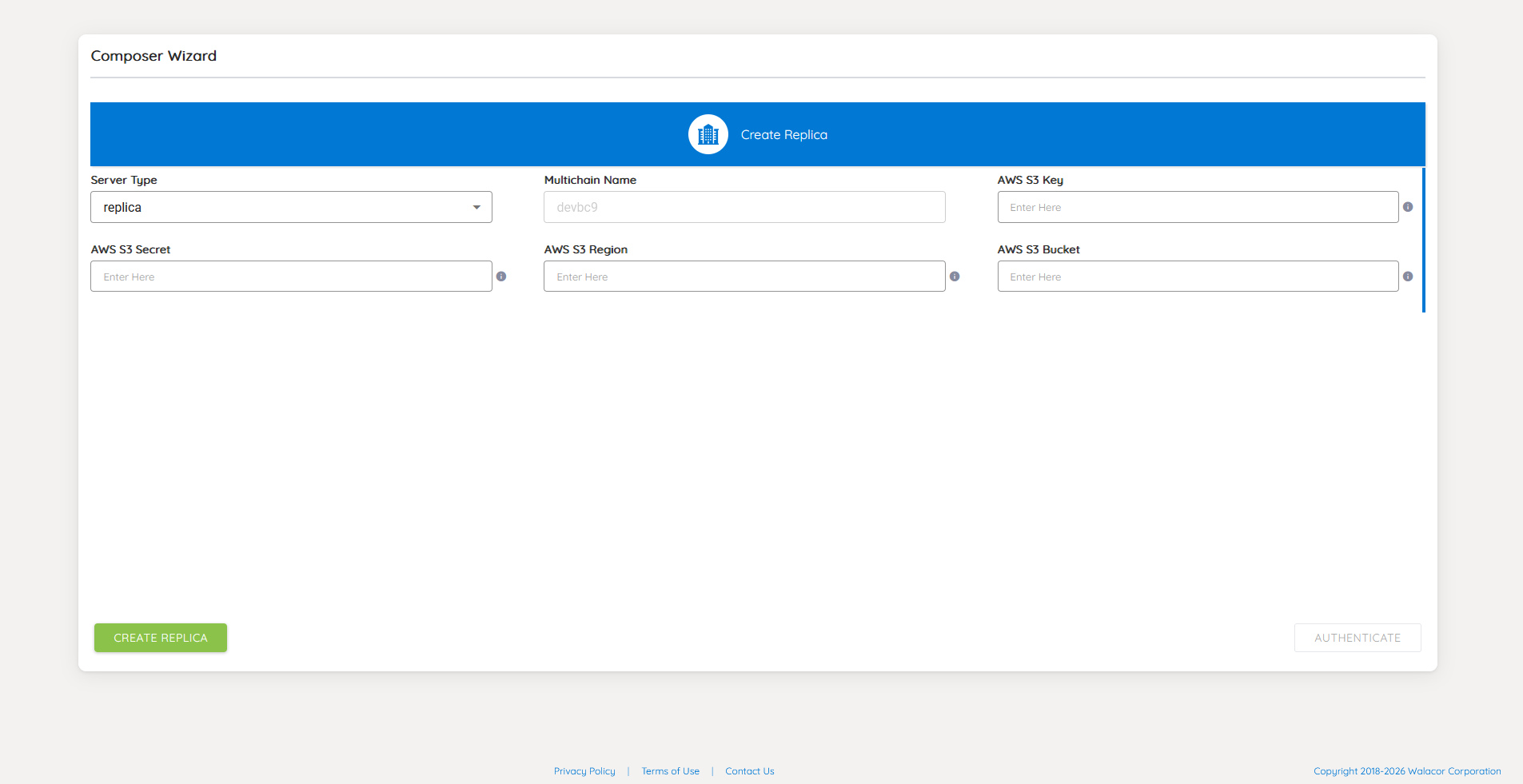
A new window “
Create Replica" will appear after clicking the “SIGN IN" button. -
Enter all the required fields for Amazon S3, such as the Key, Secret, Region, and Bucket. These fields should be the same values as those on the “
master" server. Once these fields are filled out, click the “CREATE REPLICA" button
-
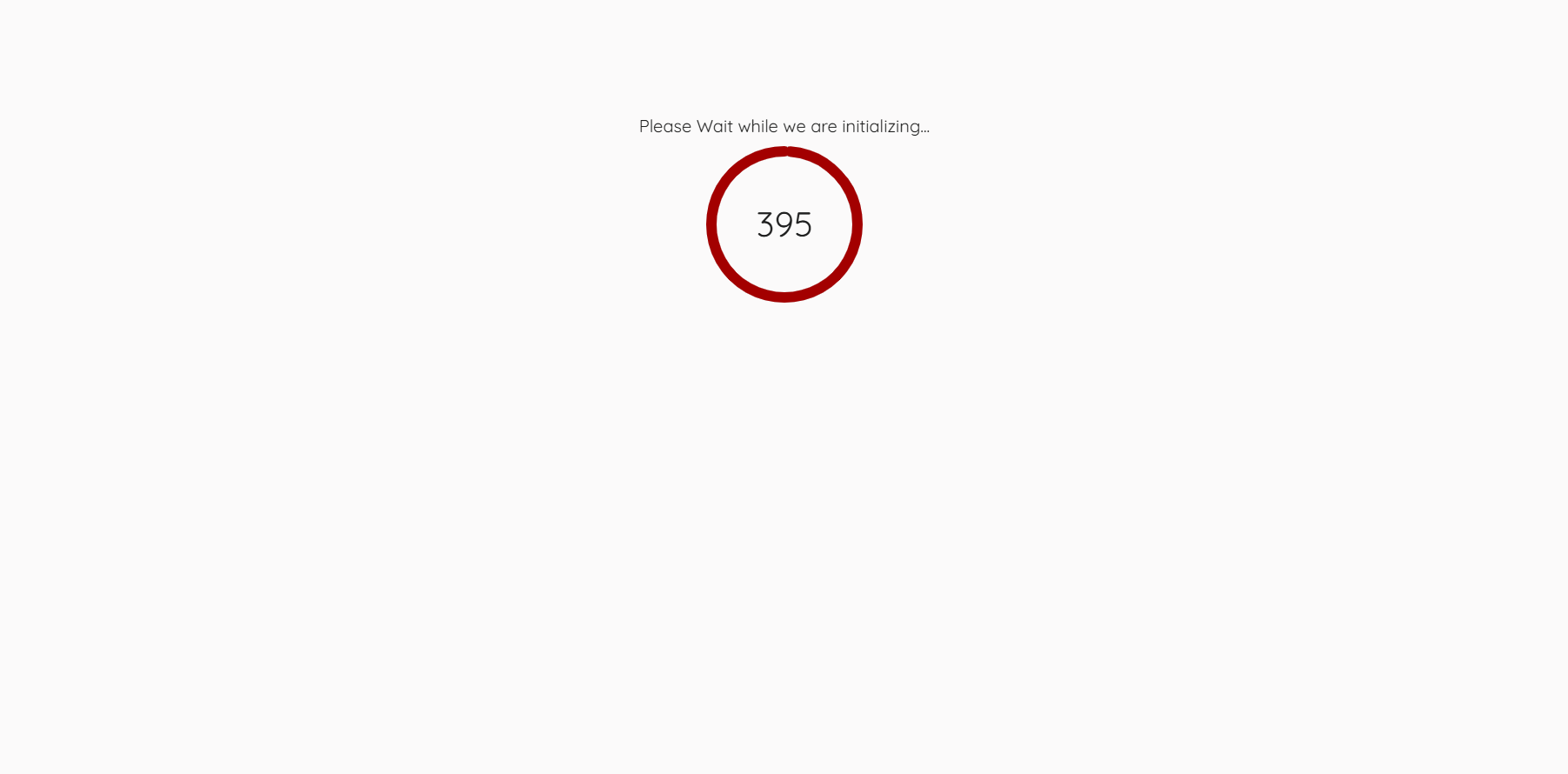
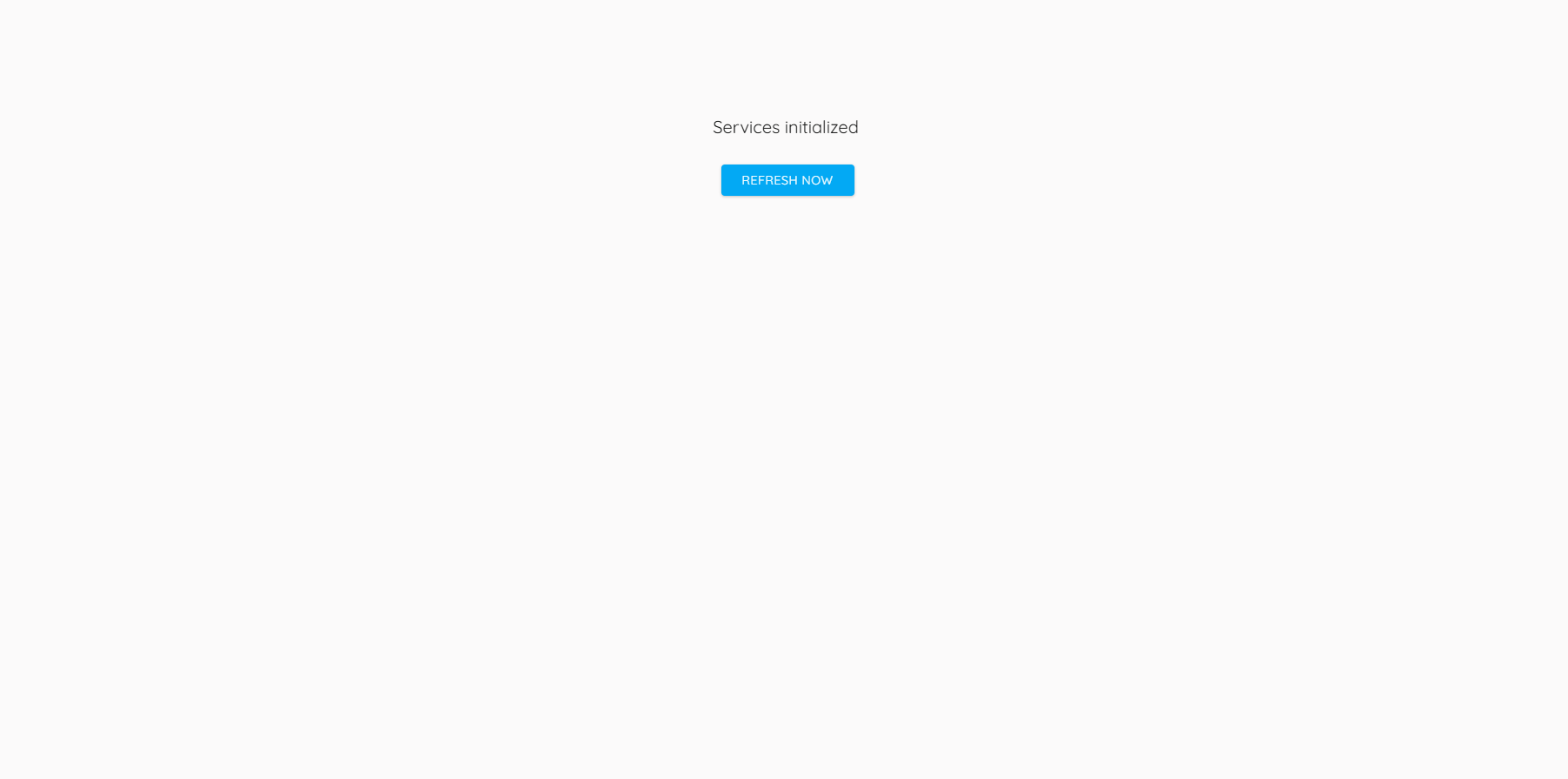
System will begin initializing the server with the new settings from Composer. Refresh the browser page after about 7 minutes